
Web Interface
A tour of the web UI: dashboard, queue, detected ads, the waveform editor, review, patterns, search, stats and settings. Portrait cut and the file itself in Videos.
Overview
Section titled “Overview”The server includes a web-based management UI at /ui/ (under the prefix when MINUSPOD_URL_PREFIX is set). Opening the server root redirects there:
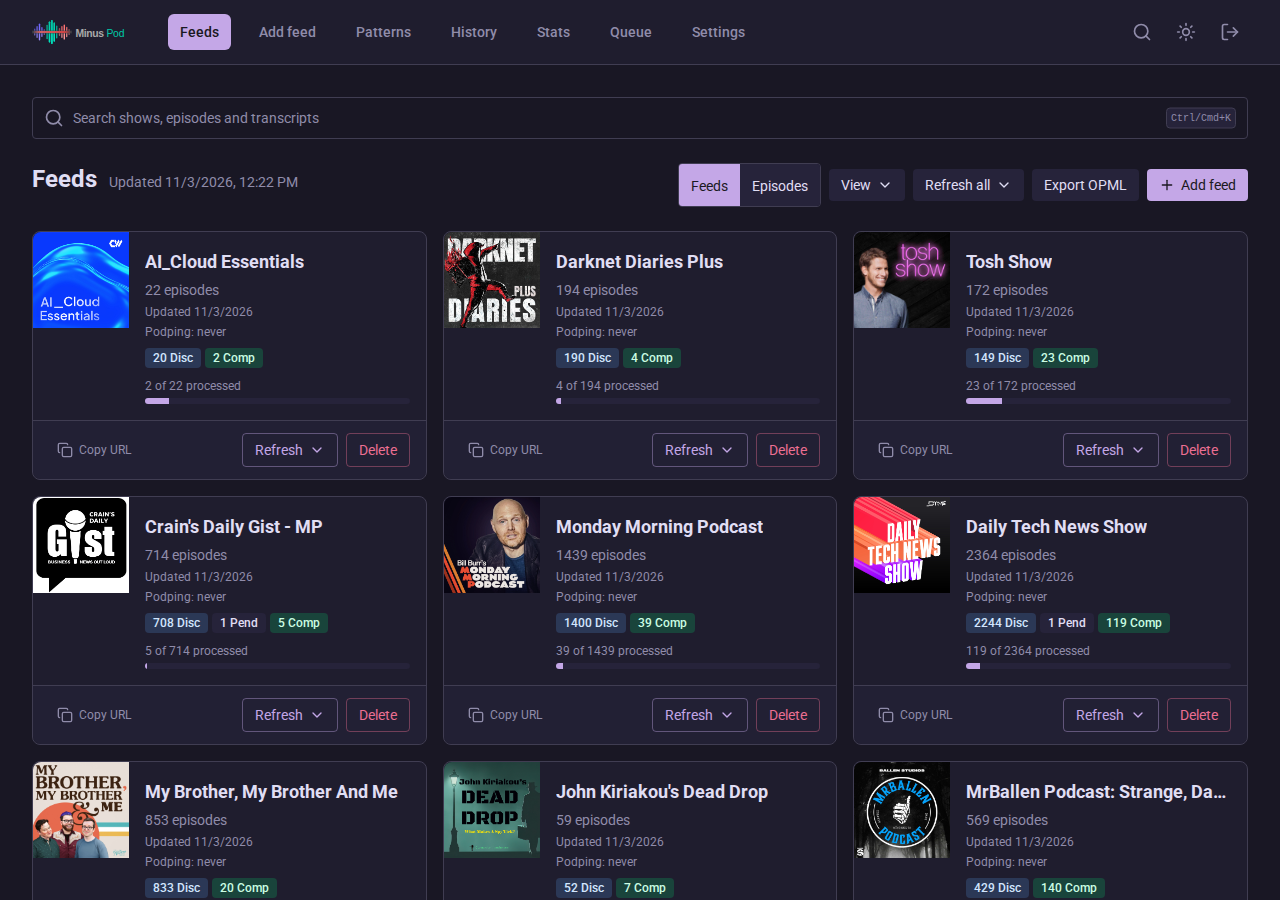
- Dashboard with feed artwork and episode counts
- Add feeds by RSS URL with optional episode cap
- Add a YouTube playlist or channel: the Add feed page has a Look up card that resolves a pasted address, shows the title, artwork, video count and any RSS directory matches, and offers Add YouTube feed. Appears only when YouTube feeds are enabled. See YouTube Feeds
- Settings > YouTube section: the Enable YouTube feeds switch, the optional Data API key with Save key, Clear key and Test key, the processing delay, probe and watch fields, the LLM fallback and captions toggles, the SponsorBlock private user ID with Show, Copy and Generate (Generate works only while no ID is stored), a Cookies box, and the yt-dlp status with Update yt-dlp daily and Update now. See YouTube Feeds
- YouTube feeds carry a YouTube badge. Their feed page has a YouTube section with an Open on YouTube link, artwork upload and refresh, and the per-feed overrides (LLM fallback, Pass 1 detection, Captions, Shorts, Delay, Probe attempts, Probe interval). Episodes show a SponsorBlock state line such as
Waiting for SponsorBlock, attempt 2 of 6, next check in 30 minorSponsorBlock: 3 segments; the full list is in YouTube Feeds - Feed management: refresh, delete, copy URLs, editable display title, set network override, per-feed episode cap, per-feed transcription language override, per-feed detection notes (free text the model sees with every episode of that show; see Configuration > Per-feed detection notes), per-feed chapter mode (keep the show’s own chapters or always generate; see Podcasting 2.0), per-feed cue match threshold and cue tuning overrides, silence-snap and transition-snap toggles (see Audio Cue Detection)
- Deleting a podcast stops any episode still processing; the delete confirmation says so when one is active
- Source feed URL shown in Feed Settings with a copy button, and editable for when a publisher moves feeds or a CDN-wrapped URL keeps failing. The server fetches and parses the new URL before saving, so a typo cannot break the feed; existing episodes are kept (matched by GUID). The refresh log also prints which URL each feed pulls from
- Per-feed max ad duration cap: ads longer than the cap are held for review instead of cut (empty = no cap; applies on the next reprocess). The cap also raises the longest single ad the model may report for the feed, see Longest single LLM detection
- Per-feed opening window exclusion: ad markers that begin inside the first N seconds of an episode are ignored, so an intro cue is not cut as an ad (empty = inherit the global setting, 0 = off, 1 to 600 s = this feed’s window; applies on the next reprocess)
- Per-feed cue-gated approval: only ads with audio-cue evidence auto-cut; others are held for review (requires cue templates)
- Require manual approval: a Settings > Global defaults toggle beside Only expose processed episodes, with a per-feed Inherit / On / Off select next to Hide unprocessed that overrides it. New episodes stay out of the served feed until approved
- Per-feed Transcript diff select (Inherit / On / Off) under Feed Settings > Advanced, next to Cross-fetch diff: overrides the global “Compare with the publisher transcript” default for that feed. Hidden on local feeds. See Upstream Transcript Differential
- Per-feed processing mode: one select with five presets: standard (detect and cut ads, the default), keep content only (experimental; marks show content and removes everything else, see How It Works), skip ad detection (still transcribes and builds chapters, but nothing is scanned or cut; for ad-free shows), pass-through (relays episodes with no transcription or ad removal, though audio may be transcoded for serving), or cue-only (experimental; cuts from cue pairs and previously learned ad patterns, no LLM call; needs one enabled ad-break-start and one enabled ad-break-end template, and exposes a per-feed safety policy and a skip-transcription toggle, see Audio Cue Detection > Cue-only preset)
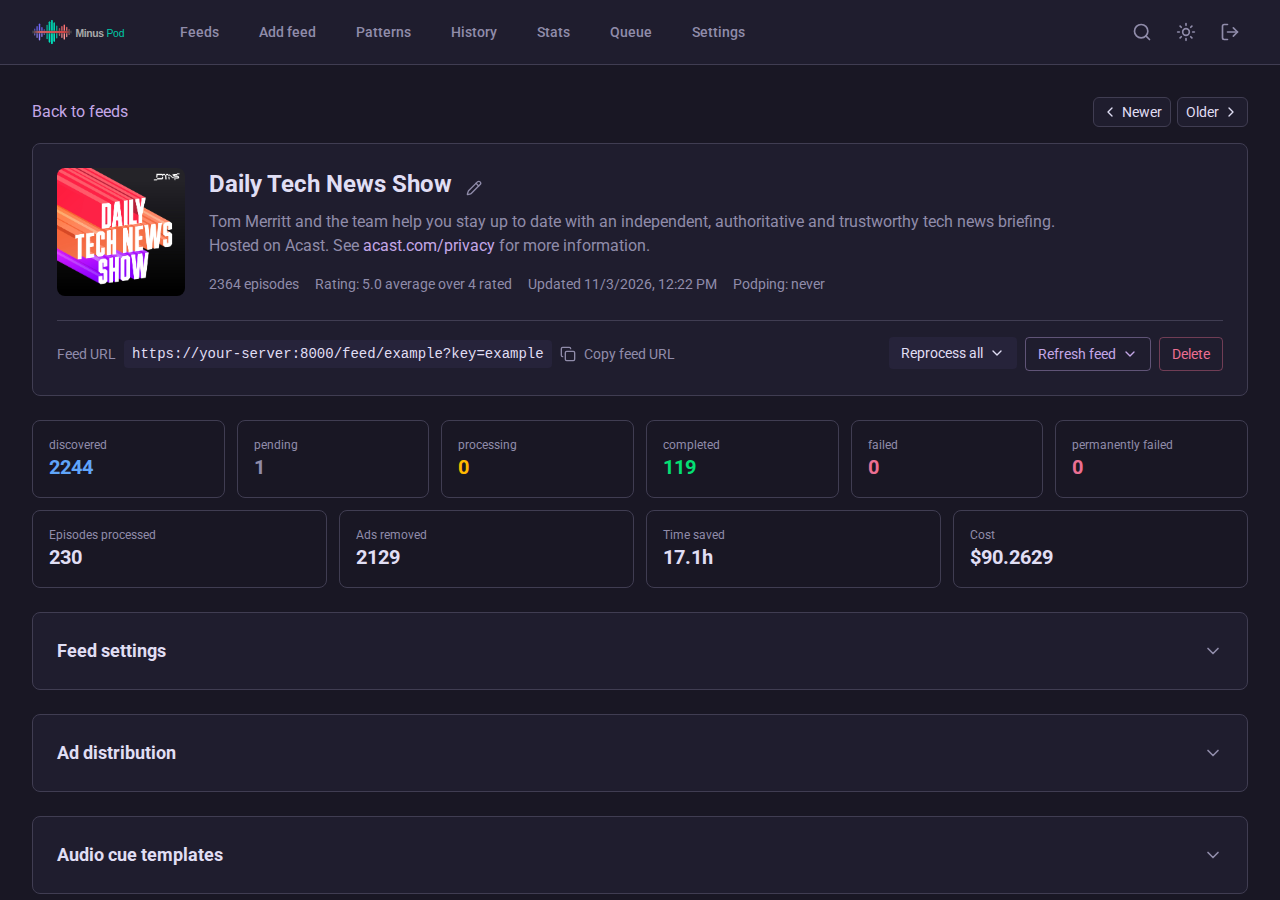
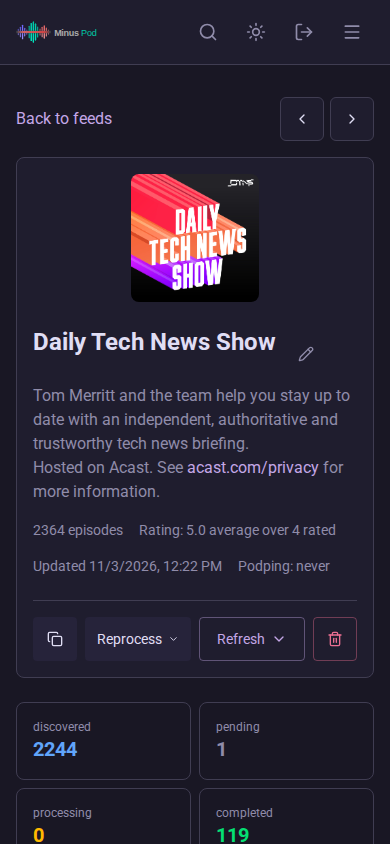
- Feed detail page groups its controls into collapsible sections so the page stays scannable. Feed Settings keeps common controls at the top. Segment actions, Cue tuning, and Advanced controls each fold into their own card. Episode filters groups title rules and optional duration limits in a separate section
- Episode filters: title patterns and optional RSS duration limits skip automatic and just-in-time processing. Configuration explains visibility and manual overrides.
- Per-feed queue priority (High / Normal / Low) with automatic boosts. See Configuration > Queue priority
- Segment actions card on the feed settings page, with a matching global card in Settings: a four-option toggle per category (Remove, Beep, Keep, or Mark). Mark keeps the audio and publishes the segment as a chapter; see How It Works > Segment Categories
- Ad chapters block (Settings > Transcripts & Chapters): chapter and resume titles, minimum confidence, and include-held, with a helper line linking back to Segment actions, where setting a category to Mark is what chapters it. See Podcasting 2.0 > Ad chapters
- Per-feed retention override: inherit the global window, keep for N days, or archive. See Configuration > Per-feed retention
- Per-feed original audio override on the same page: inherit, keep, or discard the uncut copy; see Configuration > Per-feed retention
- Per-feed stat cards above Feed Settings: episode counts by status (colored to match the status badges) plus episodes processed, ads removed, time saved, and LLM cost
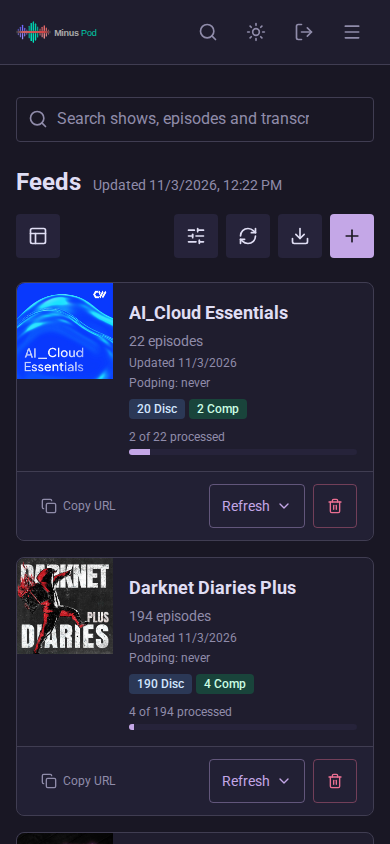
- Dashboard feeds show compact per-status counts (for example “10 Disc / 2 Pend / 4 Comp”) so feed health is visible without clicking in
- Ad Distribution panel on the feed detail page: a histogram of where ads have historically been cut across the feed, with learned prior zones marked
- Feed page artwork links to the show’s website in a new tab, when the feed declares one
- Episode discovery: all episodes surface on refresh, process any episode from the feed detail page
- Bulk actions: select multiple episodes to process, reprocess, run a full analysis, re-detect ads on the existing transcript, delete, or set/clear pass-through (the per-episode Recut Audio mode is not a bulk action)
- The episode list marks an episode that a feed filter rule matches with a Filtered chip, and its tooltip names the matching rule
- Pass-through can also be set or cleared for a single episode from its detail page (in the Reprocess menu). A pass-through episode skips transcription and ad removal, and its audio may be transcoded for serving; a chip on the episode header and a compact indicator in the episode list show which ones are set. Chapters and a transcript published upstream are imported and shown, with a Publisher transcript badge. Episodes already in pass-through pick them up on their next reprocess. Redundant when the whole feed already runs in pass-through mode, in which case the per-episode control is disabled
- Live title search filters the full feed as you type, including episodes outside the current page. Search is case-insensitive and treats wildcard characters literally.
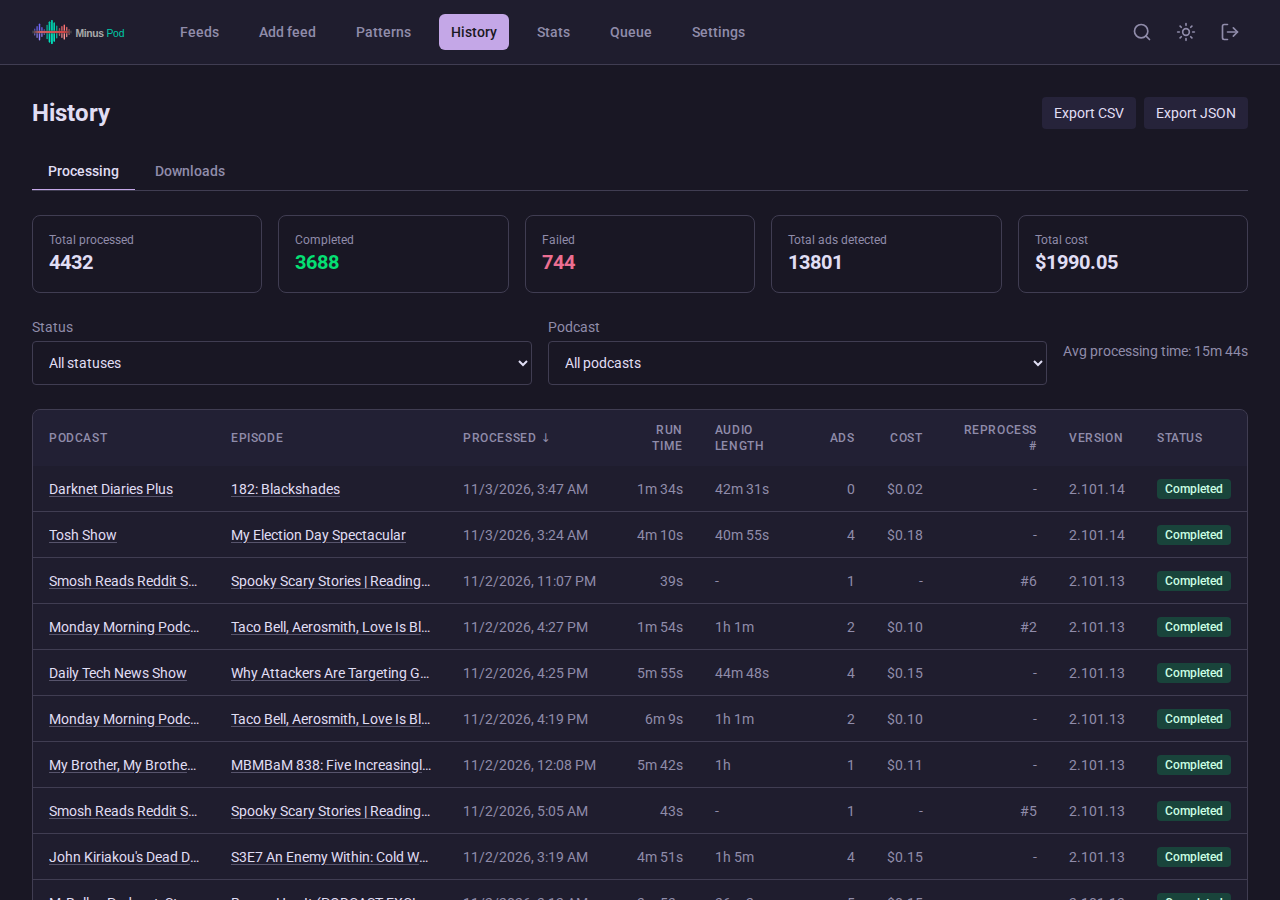
- List pages keep their page number, sort and filters in the URL: the dashboard feeds list, feed pages, Processing history, Downloads, Sponsors, Patterns, Detected ads, Ad review and the Queue. Back and reload return to the same view, and the address holds only filter values, sort keys and page numbers, with defaults left out.
- Select all on page selects the visible rows. Select all matching episodes spans every page and skips queued or running episodes. Bulk actions accept at most 500 episodes; larger selections show a message and disable the actions.
- The status filter’s Filtered option lists the episodes a feed filter rule matches, the same episodes that carry the Filtered chip. All statuses still lists every episode. The option replaces the other status choices rather than combining with them.
- Sort by publish date, episode number, or creation date; paginated (25/50/100/500 episodes per page). Changing search, status, or sort clears the selection.
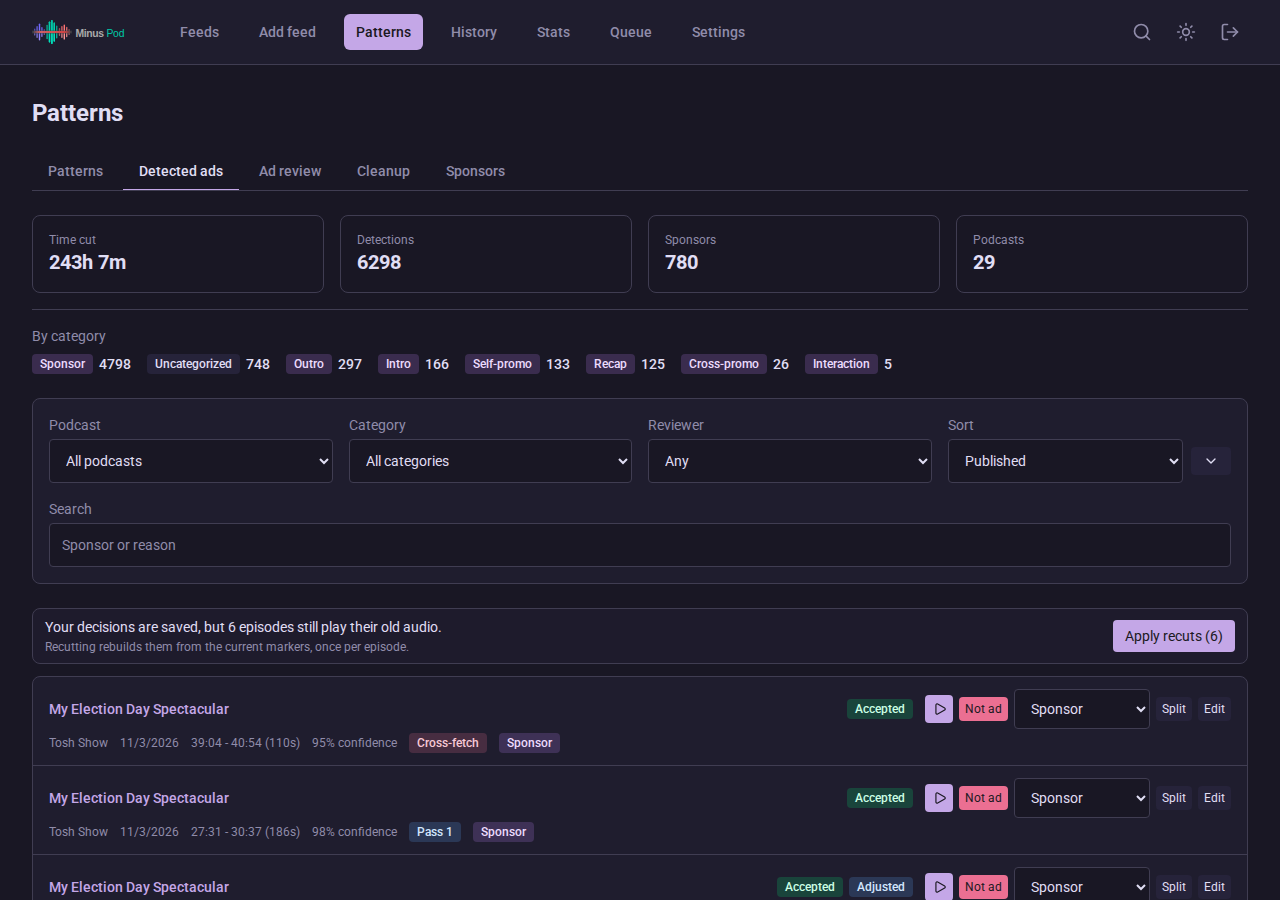
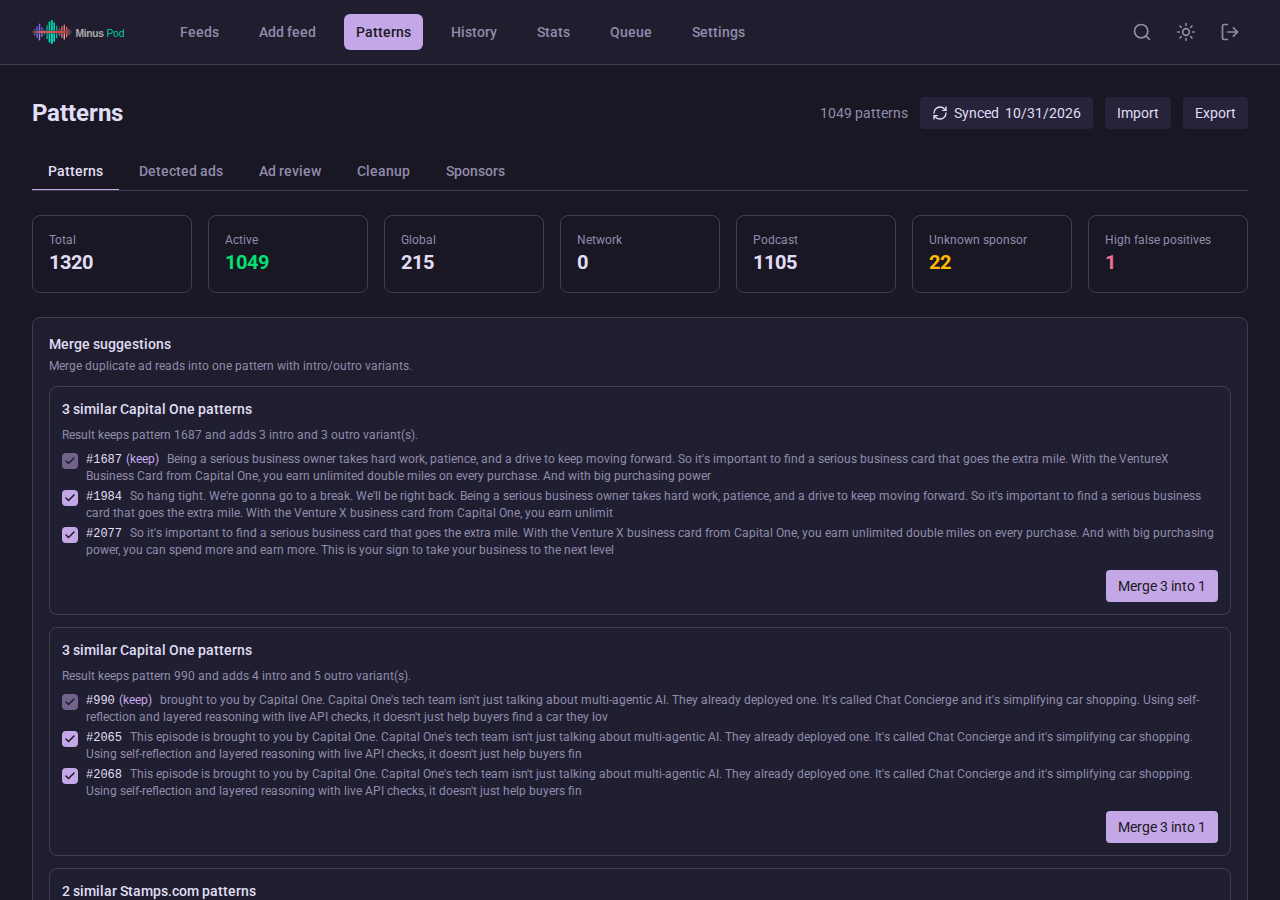
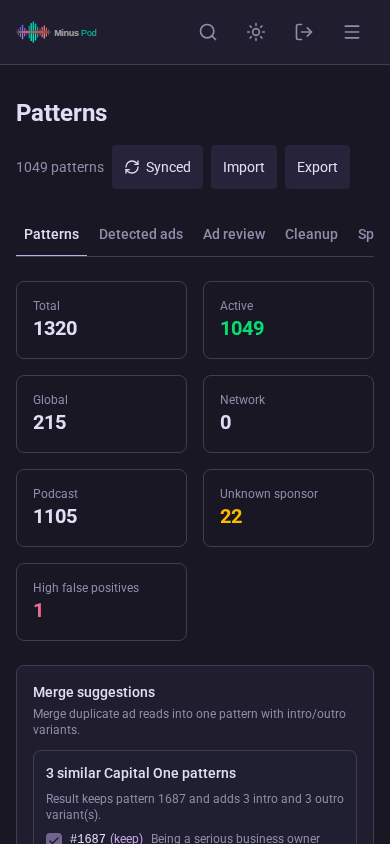
- Pattern management: view and manage cross-episode ad patterns with sponsor names; the detail modal edits a pattern’s sponsor, text template, active state, and segment category; includes an Ad Review tab for triaging detections across all podcasts
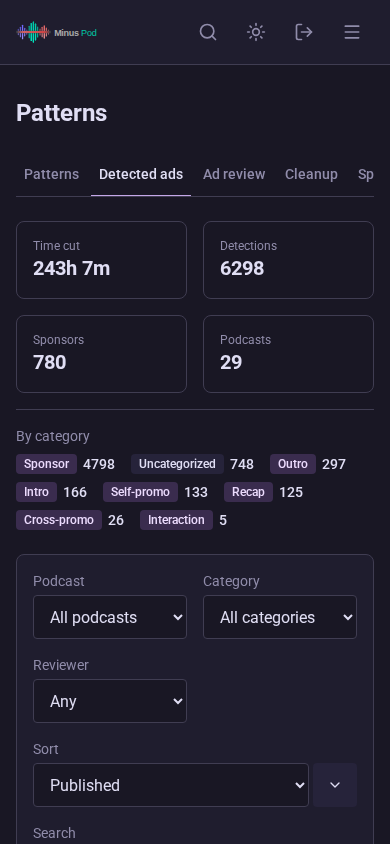
- Review decisions are recorded as you make them, then applied together. The Ad Review and Detected Ads pages show an Apply recuts button that recuts each waiting episode once, however many decisions it collected. A feed’s own page has the same button for just that feed’s episodes
- Segment category is editable in place: on an Ad Review or Detected Ads row, in the Detected ad window, and per pattern in the Ad Patterns table. It is what decides whether a span is cut, beeped, or left in
- Episode page marker badges: a segment left in by Keep shows “Kept”; one left in by Mark shows “Marked” instead, in the header and in the kept-segments list
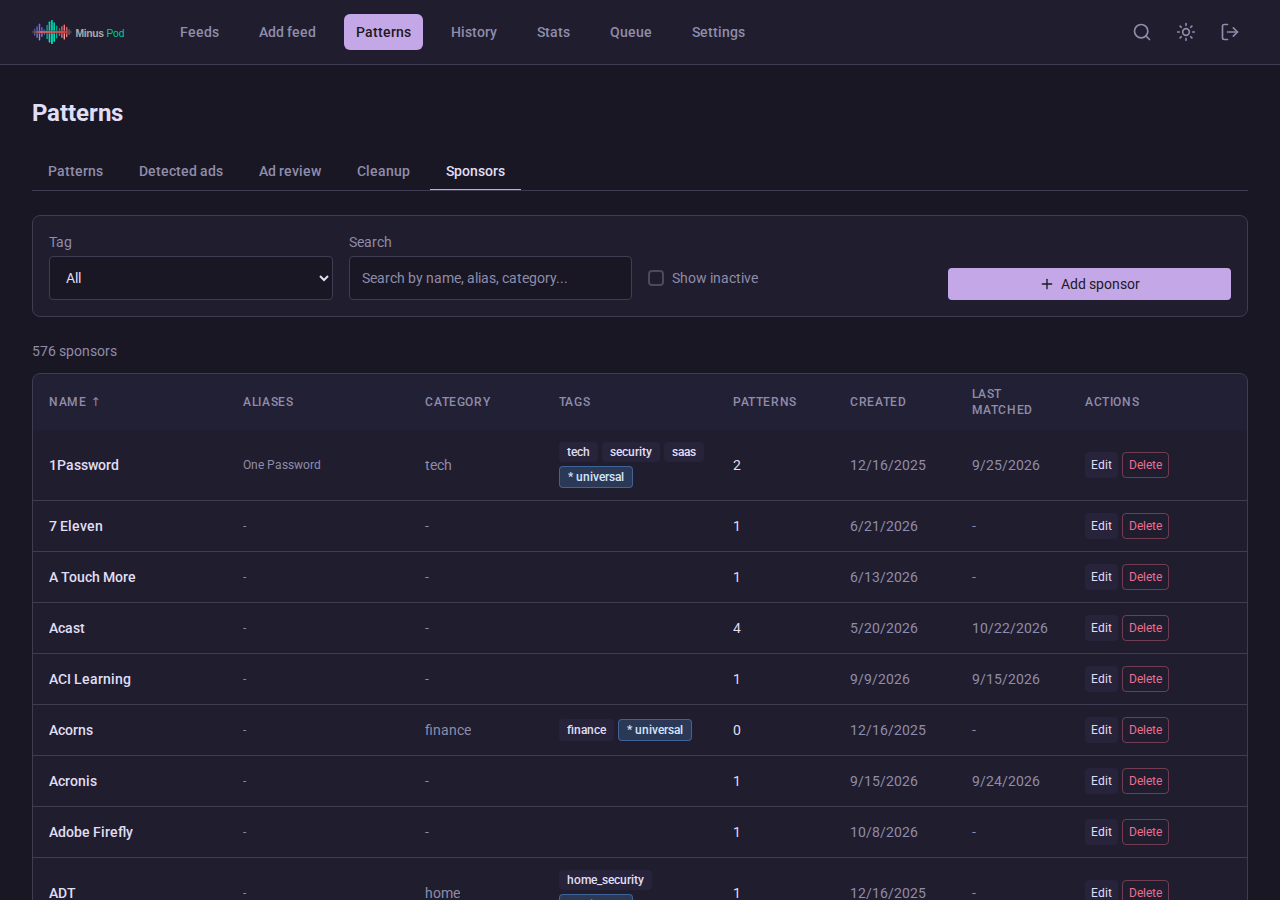
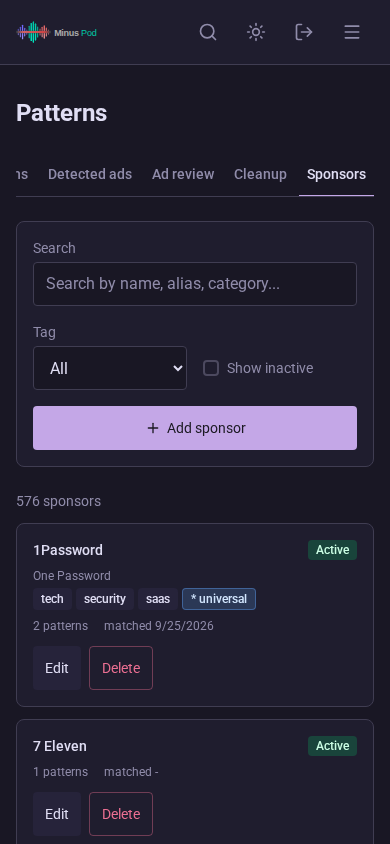
- Sponsor management: view, add, edit, and remove sponsors, each with its linked-pattern count, created and last-matched dates, and tags
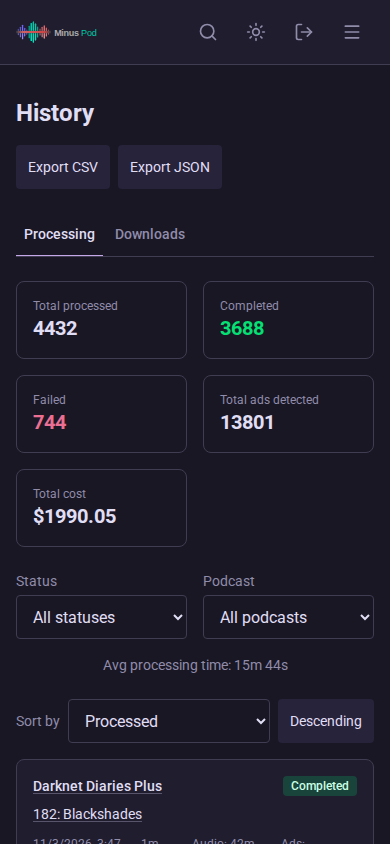
- Processing history with stats, filtering by podcast, and CSV/JSON export; failed runs show their error reason under the episode title, with the full text on hover
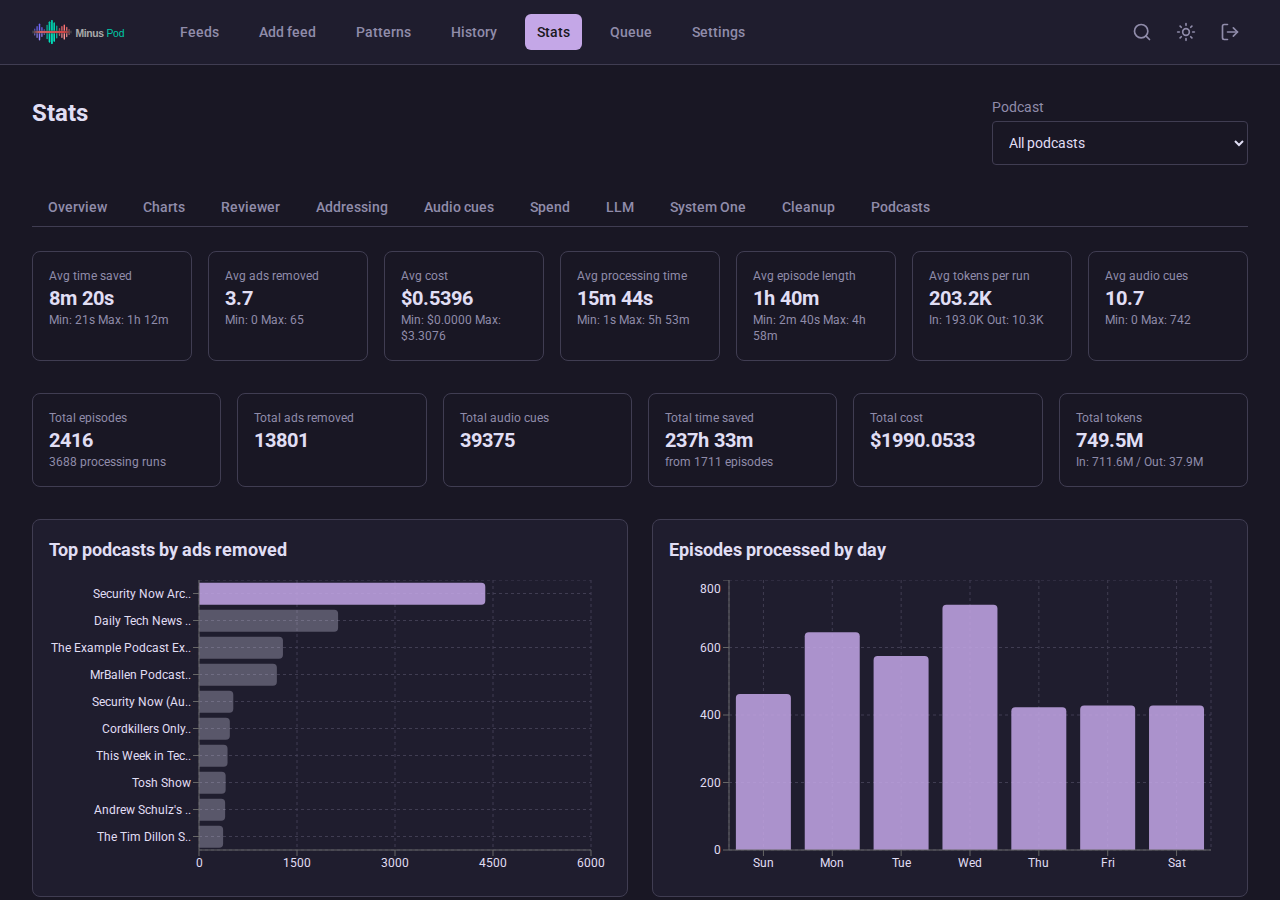
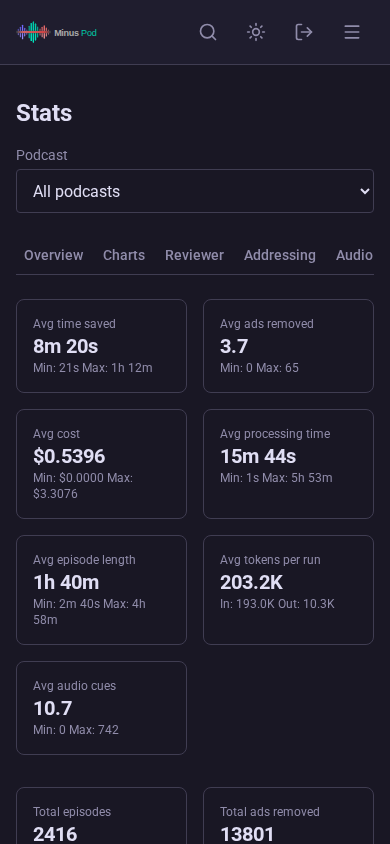
- Stats dashboard with charts: avg/min/max metrics, top podcasts by ads, episodes by day, token usage, sortable podcast table, and an addressing-modes card comparing contract compliance and ad yield per mode (see Configuration > Ad Addressing Mode)
- JSON schema response format (Settings > LLM Provider): opt-in for OpenAI-compatible endpoints, probed per model and falling back to plain JSON mode where it is not supported, and for Ollama (see Configuration)
- Settings for LLM provider, AI models, ad detection prompts, retention, system stats, token usage and cost. Each customizable prompt has its own Reset button; see Configuration > Ad Detection Settings
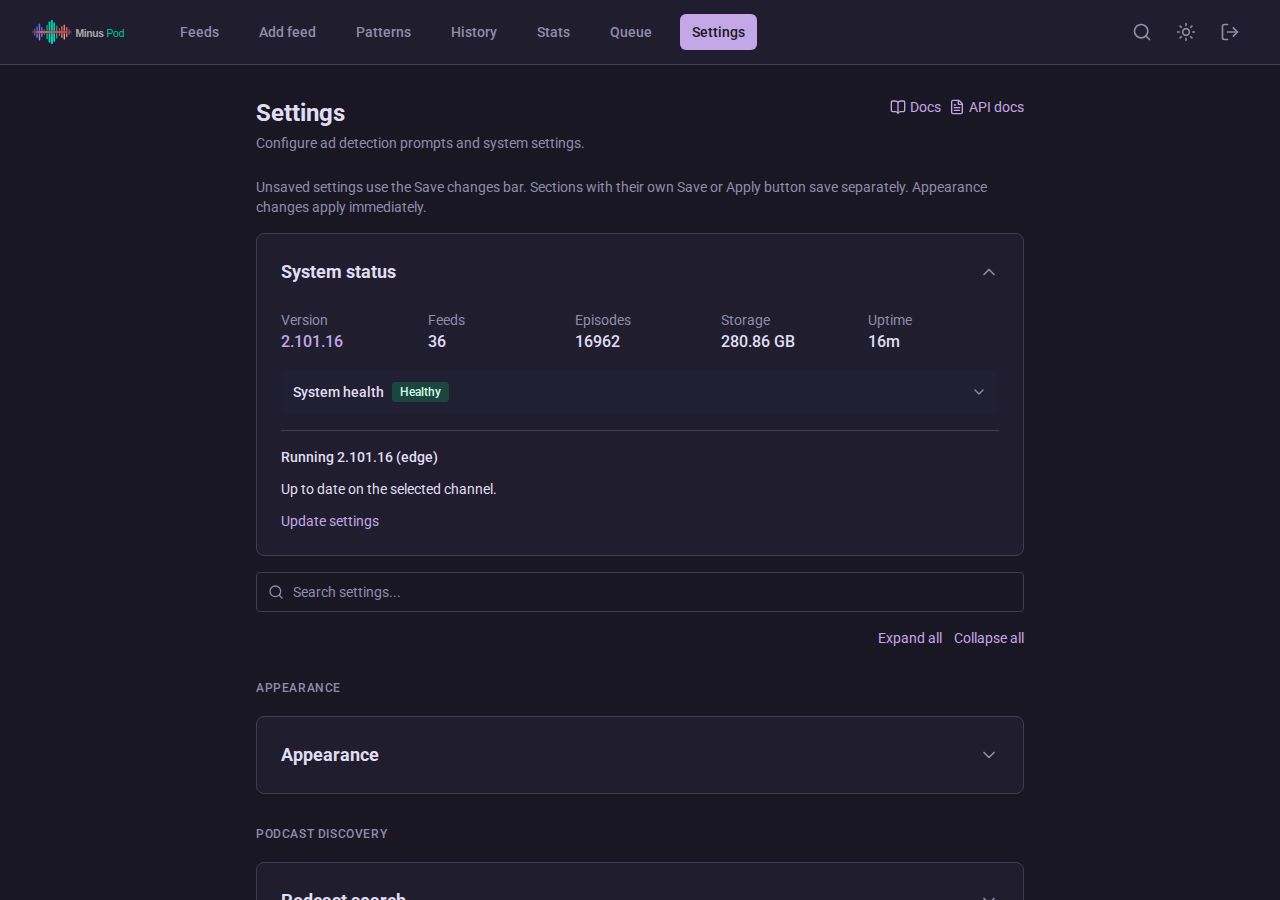
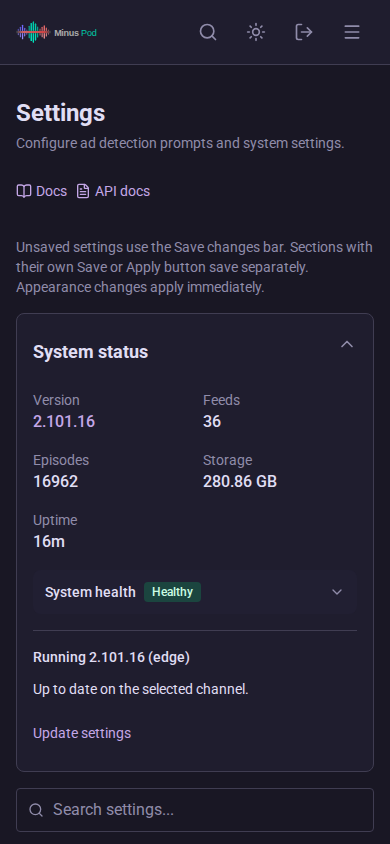
- What’s new dialog (Settings > System status): after the app version changes, or on a browser’s first load, each browser opens a dialog until it is closed, then not again for that version. It lists the changelog sections newer than the version that browser last saw and links to the GitHub repository and release notes. A browser with no recorded version shows the running version’s section only. The Show what’s new after an upgrade toggle turns the automatic dialog off, first load included. A browser that blocks site storage cannot record the version and sees the dialog on every load. The Version entry on Settings reopens it with the latest ten sections. The text comes from the
CHANGELOG.mdbundled in the image, served byGET /api/v1/changelog - Database backups (Settings > Data & Security): encrypted downloads and scheduled plain SQLite snapshots with a Back up now button. See Configuration > Scheduled Database Backups
- Troubleshooting (Settings > Troubleshooting): a Configuration export card (redacted settings and feed configuration as JSON) and a Diagnostic export card covering the last 1, 6 or 24 hours. The diagnostic export holds event times and source locations plus, for warnings and errors, the message template and exception type; logged values are never included. See API and Webhooks
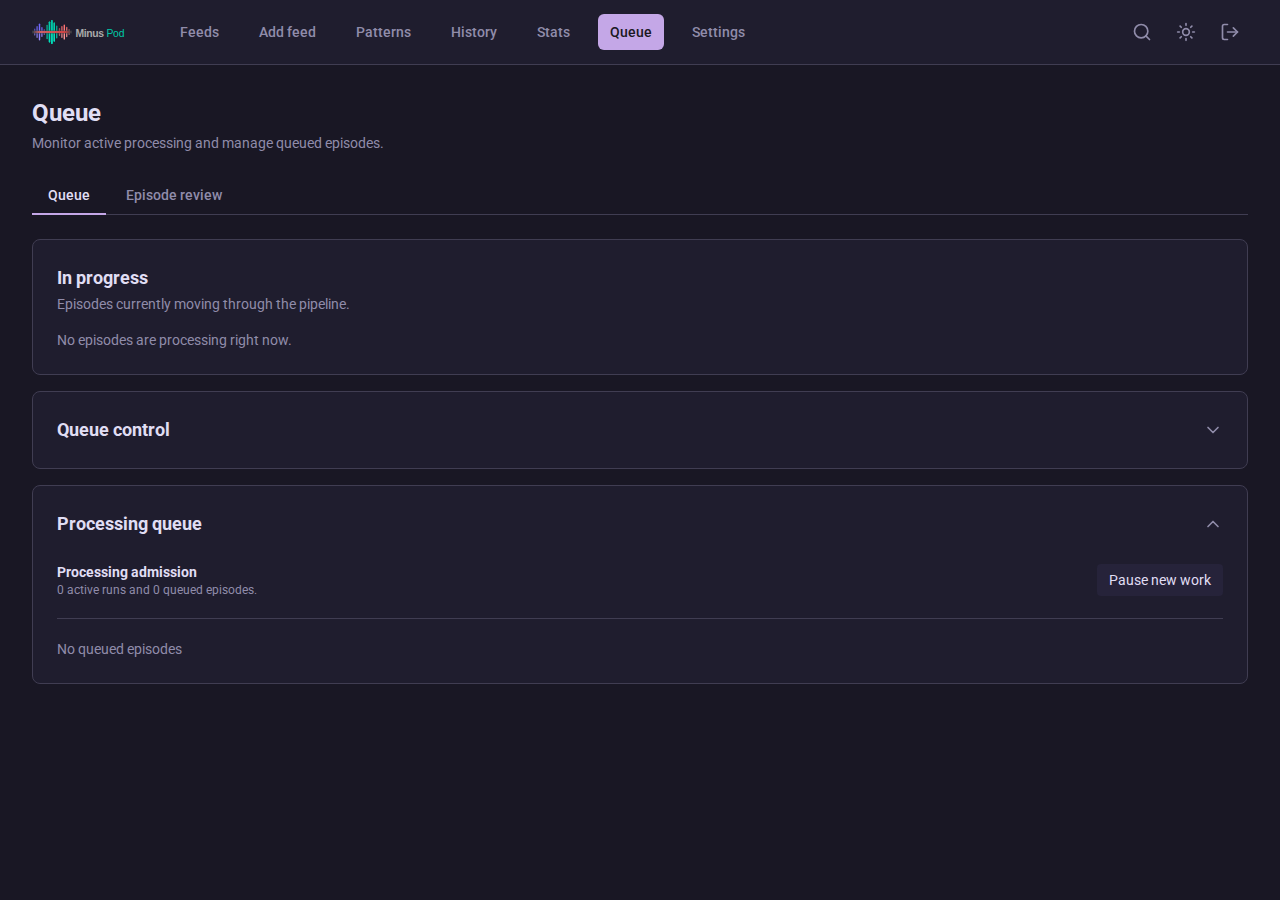
- Offline queue (Queue > Queue Control): hold episodes while a self-hosted LLM or Whisper endpoint is down. See Configuration > Offline Queue
- Whisper pool (Settings > Transcription): process several episodes at once on a remote Whisper backend. See Configuration > Whisper Pool
- Rate-limit hold (Queue > Queue Control): pause the queue while the LLM provider reports a 429 with a reset time. See Configuration > Rate-Limit Hold
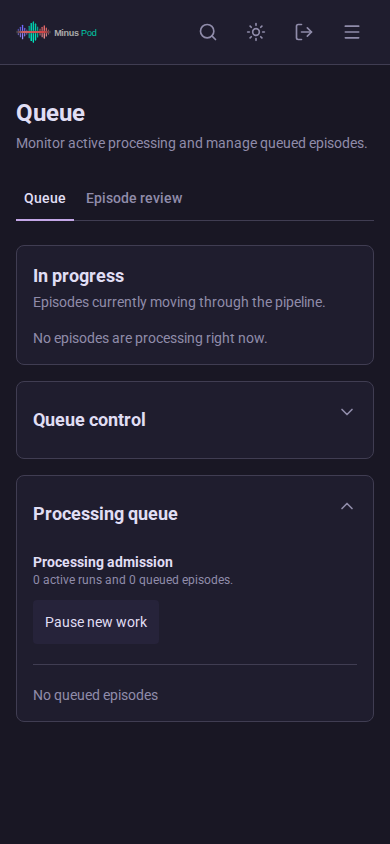
- Queue page: active jobs show progress and cancellation controls. The full waiting list is paginated, shown as a table from 1280 px and as cards below that. Each row has links and -/+ buttons that can raise or lower its priority. A row the scheduler will not admit yet says why, naming the blocked phase, the account slot, the reason, and when the block lifts
- Queue page tabs: Queue holds the content above and Episode review (
?tab=review) lists the episodes that need you. Its Awaiting approval section has a checkbox per episode, Select all and Approve selected (n). Each row shows the feed, how long the episode has waited, and its ad and held counts. Both lists are tables from 1280 px and cards below that. Its Held detections section lists episodes with held ads and links to the episode page’s Held for Review section - Provider account switch (Settings > LLM Provider): changing a slot’s endpoint or provider type lists the runs still bound to the current account before you save, and asks whether to requeue them on the new account (the default) or cancel them, so in-flight work is never moved silently
- Failover (Settings > AI & Processing): standby LLM provider and transcriber with a status row per target and manual Trigger/Cancel/Probe now controls. See Failover
- Pattern Cleanup (Settings > Experiments): scheduled LLM review of learned patterns, reviewed on the Patterns page’s Cleanup tab. Experimental, off by default. See Pattern Cleanup
- Status bar showing processing progress across all pages. It also appears when the queue holds work with nothing running, and names the provider reset time for a rate-limit pause, the unavailable service for an offline wait, or the targets on failover. See How It Works > Real-Time Processing Status
- System health panel: a Failover row turns warning while any target is on its failover configuration, alongside the existing Transcriber, Podping, and Feed refresh rows
- Outbound Requests (Settings > Data & Security): the User-Agent strings MinusPod sends when it fetches feeds, audio, and artwork, plus a toggle for URL query strings in download logs. See Configuration > Outbound Requests
- OPML export with original or ad-free (modified) feed URLs
- Optional cover-art badge that marks the filtered feed (Settings > Cover Art), with a Refresh all artwork button
- Global Defaults group in settings: Auto-Process, the auto-process window, Max Feed Episodes, Only Expose Processed, verification, and cross-fetch differential. Each feed can inherit or override them; see Configuration > Global feed defaults
- Chapter mode default in Settings > Transcripts & Chapters, with the same per-feed inheritance
- Queue priority boosts in Queue > Queue Control, see Configuration > Queue priority
- Notifications for processed episodes, permanent failures, auth failures, exhausted spend limits, structural rate-limit hits, and episodes awaiting approval or holding detections for review, delivered by webhooks or native email (Settings > Notifications). See API and Webhooks > Events
- Podcast search from Add feed, using Apple’s iTunes directory by default or Podcast Index when configured
- Search: press Ctrl+K on Windows/Linux or Cmd+K on macOS to open the keyboard palette, or use the search field on the Dashboard. Both return shows, episodes, and transcript matches together, spanning every episode status. The header magnifier, or the palette’s own “Advanced search” link, opens a dedicated search page with type filters plus pattern and sponsor matches
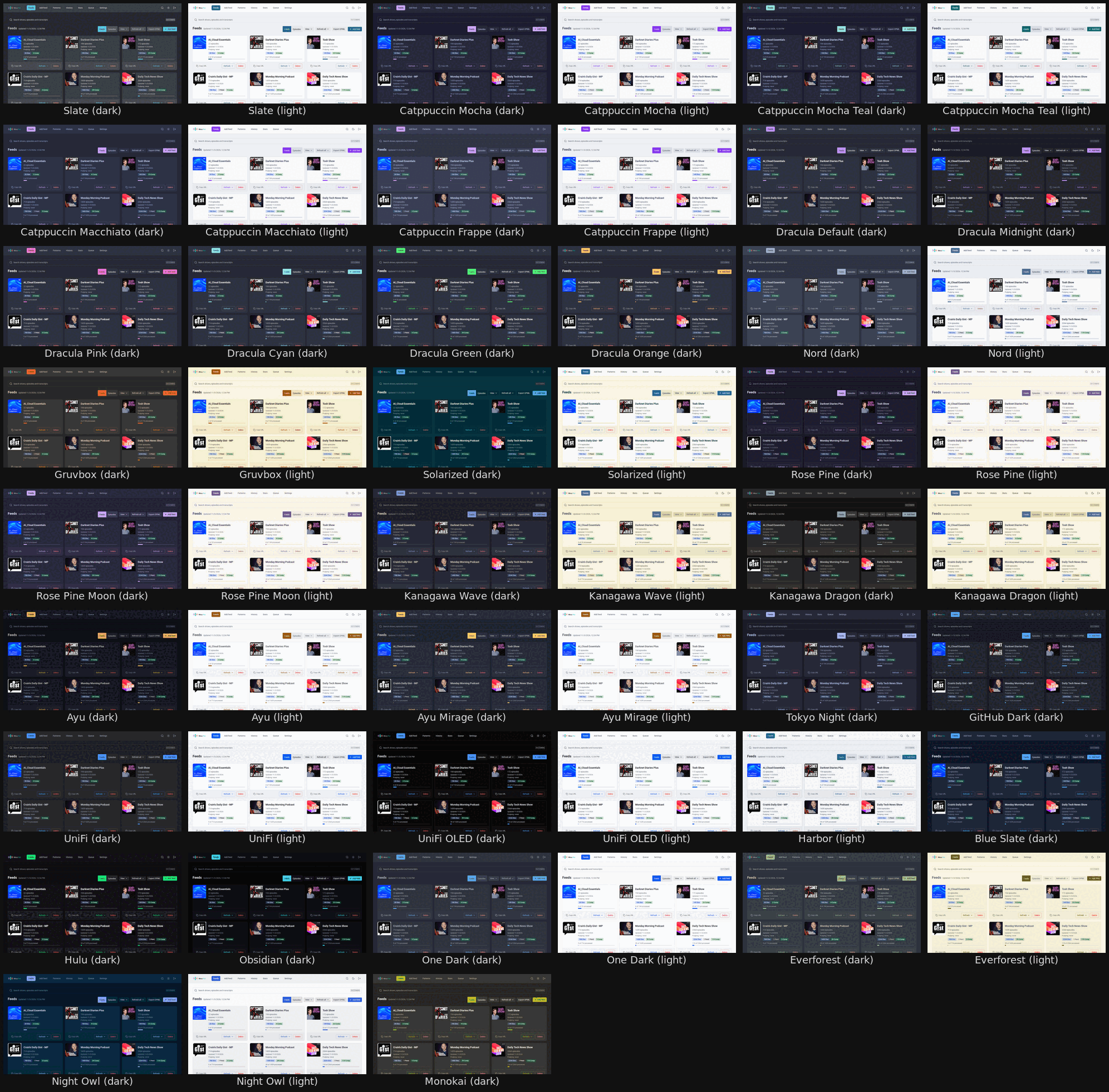
- 32 themes (Catppuccin, Dracula, Nord, Gruvbox, Solarized, Tokyo Night, Rose Pine, Kanagawa, Ayu, One Dark, Everforest, Night Owl, Monokai, and more) with a light/dark toggle; see the theme sheet under Screenshots
- Installs as an app on phones, tablets and desktops (Install as an app)
Saving and updates
Section titled “Saving and updates”Settings shows whether a control uses the page’s Save Changes button, its own Save button, or an immediate action. Registered unsaved drafts prompt before navigation or closing an editor. Cancel keeps the draft; Discard closes it without saving. Browser reload/close uses the browser’s own unsaved-change prompt.
When an app update is ready, a banner offers Reload. Finish saving or discard registered drafts before applying it. Updates never reload the page automatically while a draft is open.
Feed deletion, settings reset, and replacement imports use explicit confirmation dialogs. Read the named target and consequences before confirming. Failed requests show an error and Retry where supported; a failure does not establish an empty list.
Install as an app
Section titled “Install as an app”The web UI is a Progressive Web App. Installed, it opens full screen from its own icon, with no browser toolbar, and keeps your login session. Browsers only offer to install over HTTPS, so put the server behind the reverse proxy or tunnel from the installation guide first.
| Platform | How |
|---|---|
| iPhone and iPad | Open the UI in Safari, tap Share, then Add to Home Screen. Only Safari can install it on iOS. Chrome and Firefox there cannot. |
| Android | Chrome offers an Install prompt on first visit. If it does not, open the browser menu and choose Install app or Add to Home screen. |
| macOS | Chrome and Edge show an install icon at the right end of the address bar. Safari 17 and later: File, then Add to Dock. |
| Windows | Chrome and Edge show the same install icon in the address bar, or use the browser menu and choose Install MinusPod. |
The installed app updates the same way as the browser tab: when a new version is ready, the Reload banner appears and applies it. To remove it, delete the icon as you would any app.
Foldable phones
Section titled “Foldable phones”The layout pads the page and its fixed bars by the left and right safe-area insets, so content stays clear of the side bar on a folded outer display. Summary grids keep even column counts at tablet-like widths so cards divide cleanly at a center fold. When the browser reports a two-segment viewport, as on a partly folded device, dialogs stay inside one half instead of crossing the hinge.
Dashboard views
Section titled “Dashboard views”The dashboard toolbar has a Podcasts / Episodes switch. On mobile, an icon menu holds both choices to leave room for the other controls. Podcasts is the original view, one card or row per show, and it keeps the grid and list layouts and the sort control. Episodes reorganizes the same dashboard around recent work instead: one section per podcast, each with its cover, its title, its total episode count, a “View all episodes” link, and that show’s newest episodes underneath.
The View menu sets how many episodes each podcast section shows, from 1 to 10, defaulting to 3. Both the chosen view and the chosen count are remembered in the browser, so the dashboard opens the way you left it.
Episode rows show the same status badge, hold chip, and pass-through indicator as the feed page. Each dashboard row adds an Actions menu with Process or Reprocess and Full Analysis. For processed episodes that are not busy, Delete removes downloaded audio and resets the episode to Discovered while preserving its record and processing history. Original audio uploaded to local feeds is kept. The Recents feed is left out of the grouped view: its episodes belong to the shows they came from, so it would always render empty.
One request loads the episode groups rather than one request per show, and the dashboard asks for one page of feeds at a time rather than the whole subscription list. Sorting happens on the server before the page is cut, so a page is a slice of the sorted list rather than a sorted slice; changing the sort returns you to page one. Only the active view is fetched: the Podcasts grid never pays for the episode projection, and the Episodes view never fetches a second bare feed list. Screens that need every feed, such as the podcast pickers on Stats, History and Patterns, keep their own unpaginated request.
OPML export
Section titled “OPML export”Use Export OPML on the dashboard to download all or selected subscriptions with MinusPod’s ad-free feed URLs. The picker starts with every feed selected; use Select all or individual checkboxes to change the selection. Exports use custom feed names when set. If the feed list cannot load, Retry fetches it again.
Settings > Data Management also offers full exports with either original or modified URLs. Original URLs point at the publishers; modified URLs point at MinusPod and include the feed key when authenticated feeds are enabled.
API clients can use GET /api/v1/feeds/export-opml?mode=modified for all feeds,
or POST to the same URL with {"slugs":["example-podcast"]} for a selection.
The POST form avoids URL-length limits for large selections. See
API & Webhooks.
Episode player
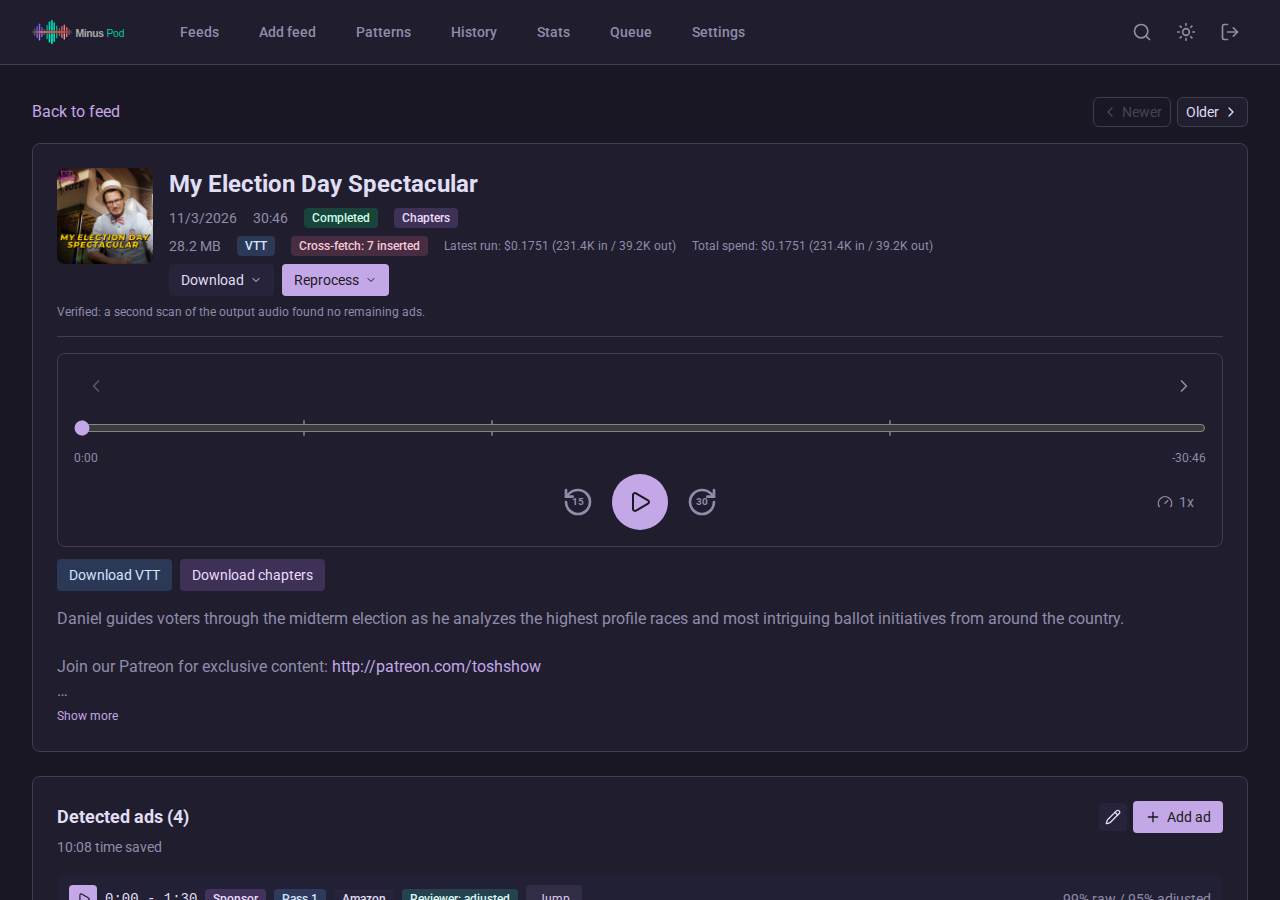
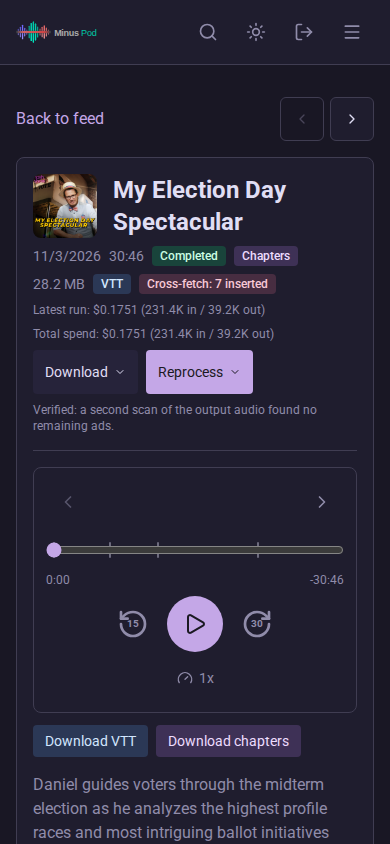
Section titled “Episode player”A completed episode plays in a built-in player instead of the browser’s native controls. When the episode has chapters, a row above the scrubber shows the current chapter title with previous and next chapter buttons. Previous restarts the current chapter when you are more than 3 seconds into it, otherwise it jumps to the chapter before. The scrubber marks chapter starts and shows elapsed and remaining time. Below it are skip back 15 seconds, play and pause, skip forward 30 seconds, and a speed button that cycles 1x, 1.25x, 1.5x, 1.75x, 2x and 0.8x. The speed is remembered per browser. With focus on the player, Space plays or pauses, Left Arrow skips back 15 seconds and Right Arrow skips forward 30 seconds. The episode description and chapter notes sit under the player, collapsed to a few lines with a Show more button when they are long.
Episode rating
Section titled “Episode rating”Rate how well MinusPod handled an episode from 1 to 5 stars on the episode page. Below 5 stars you can add notes of up to 2000 characters. Giving 5 stars clears any notes and records a confirm correction for every cut ad marker except community marks. This is the same as pressing Confirm on each, including pattern learning. The next reprocess force-accepts those spans. Five stars also dismisses any ads still held for review on that episode, like pressing Dismiss on each. Nothing is recorded for pattern learning, so a later reprocess may hold the same span again. The audio is not changed and no recut is queued. Clearing a rating removes the stars and notes; confirmations already recorded stay. Opening the episode page with ?rate=5, which is what the optional Rate 5 stars link in feed descriptions does, applies a 5-star rating on load, shows an Undo button and removes the parameter from the address.
A feed’s page shows the average rating and how many episodes are rated. Ratings and their notes are part of the diagnostics download, which includes up to 500 rated episodes in the chosen range, with how many segments were cut, kept and held.
Episode actions and job state
Section titled “Episode actions and job state”Process, Reprocess, Re-detect Ads, and Recut all read their enabled state from the server’s authoritative view of whether a job is queued or running, rather than guessing from the episode’s stored status. In the UI that means:
- The action button keeps one label per episode. An episode that has been processed before always reads Reprocess, even while it is queued again and its status has reverted to pending. Buttons share a fixed minimum width, so a column of them lines up instead of shifting as labels change.
- While a run owns the episode, the controls are disabled rather than merely slow. Submitting the same episode twice is not possible from the UI, and the API answers a duplicate submission with the same job state rather than a bare error, so the page reconciles instead of showing a failure.
- An episode waiting in the run queue shows a purple “queued” badge, not “pending”. Pending means the episode is eligible for work; queued means work has actually been scheduled.
Error states are scoped to the action that produced them. A failed correction in the review panel marks only the button that was clicked, so a failure on Confirm, Confirm trimmed, or Not ad marks only that button. A rejected reprocess shows the server’s own message. A failed run shows its reason under the episode title on the history page and in the header on the episode page. In the Processing stats table the word “failed” is a button: expanding it shows the error text inline with a Copy error action, so the reason is readable on a phone or by keyboard rather than only on hover.
Manual approval
Section titled “Manual approval”When Require manual approval applies to a feed, a processed episode shows an amber “Awaiting approval” badge in the episode header with an Approve and publish button, and an “awaiting approval” chip in episode lists. The feed card shows “N awaiting approval”. Approving adds the episode to the served feed at once. A recut also approves the episode. The same episodes can be approved in bulk from Queue > Episode review. The Episode Awaiting Approval notification event fires when an episode starts waiting.
Feed Display Title
Section titled “Feed Display Title”Each feed’s title is editable. On the feed detail page, click the pencil next to the feed name, type a new name, and Save. Subscribers see this name in their podcast app: MinusPod rewrites the <title> in the served RSS and leaves the source feed’s own title untouched. A “Custom” badge marks a feed that has an override; saving the field blank drops back to the source title.
Titles are capped at 500 characters and collapsed to one line, so a rename or a suffix like “ (ad-free)” works, while newlines and control characters are stripped to keep the feed well-formed. Saving a new title regenerates the served feed, so the name updates on the app’s next refresh.
Sponsors and Normalizations
Section titled “Sponsors and Normalizations”The list of known sponsors lives on the Patterns page under the Sponsors tab (the old /sponsors address still redirects there, keeping any ?q= search). It shows each sponsor with its linked ad-pattern count, created date, last-matched date, and tags. You can add and edit a sponsor’s name, aliases, category, and tags, toggle it active or inactive, filter by tag, search by name, and reveal inactive sponsors.
A sponsor can also carry a segment category. When set, every read that names the sponsor is filed under that category, whatever the detector called it. The marker takes it before the per-category action is applied, existing patterns for the sponsor show and match with it, the pass-1 prompt hint states it, and a pattern learned from a cut stores it. Use it for a host’s own product that the model keeps labeling as a paid sponsor: set the sponsor to Self-promo once instead of re-categorizing each learned pattern.
Deleting a sponsor is permanent. Ad patterns linked to it are not deleted: their sponsor link is cleared (unlinked) so no pattern data is lost. The confirmation dialog shows how many patterns will be unlinked first.
Name normalizations live in Settings > AI & Processing > Transcript Normalization: regex rules that rewrite messy or inconsistent sponsor names into one canonical form before matching (for example collapsing ag 1, ag-1, and ag one to ag1). The rules correct any misheard Whisper output, sponsor names included.
Normalization regex format
Section titled “Normalization regex format”Each rule has two fields: terms (the regex to find) and canonical (the replacement). Rules are Python regular expressions applied with re.sub and the case-insensitive flag, so matching ignores case. A few specifics worth knowing:
- The text is lowercased before the rules run, so write
termsagainst lowercase. After all rules run, runs of whitespace are collapsed to single spaces. - Patterns are not anchored: they match anywhere in the text. Add
^and$to anchor to the whole string. - The replacement’s casing decides what the rule does. An all-lowercase
canonical(e.g.ag1) only canonicalizes the name used for matching. Acanonicalcontaining an uppercase letter (e.g.Wegovy) also acts as a transcript display correction, rewriting the visible transcript while preserving the casing around the match. - The regex is validated when you save a rule; an invalid pattern is rejected with an error.
categoryis one ofsponsor,url,number, orphrase.
The API exposes these fields as terms/canonical; the older names pattern/replacement are still accepted when writing a rule.
Ad Review Modes
Section titled “Ad Review Modes”The ad editor supports two review modes, selected by a toggle above the ads list:
- Processed (default): plays the post-cut output so you can verify what the final listener will hear. Ad timestamps map onto the new timeline.
- Original: plays the pre-cut download at the ad’s original timestamps, so you can hear exactly what was removed.
Original mode requires the pre-cut audio to have been retained. That’s controlled by the “Keep original audio for ad boundary review” toggle under Settings > Storage & Retention (default on). Keeping originals roughly doubles per-episode storage; disable it if disk is tight. The toggle is disabled (with a tooltip) until you reprocess.
Any single feed can override the retention window and the keep-original toggle on its own settings page; see Configuration > Per-feed retention.
Original audio has its own retention input under the same section: “Retain original audio for: N days”. Defaults to whatever the processed retention is. Set a smaller number to drop the pre-cut copy sooner while keeping the processed file for the full retention period (useful if originals are taking too much disk but you still want the processed output around for the normal 30-day window). Capped at the processed retention by the server; the input is disabled when “Keep original audio” is off.
The Transcript section on the Episode Detail page has one View transcript button. It opens a reader with a source select, Original for the full pre-cut text or Processed for what is served, and every segment carries its timestamps. There is a search box that marks each match, a start and end time window, and, on the original, a Highlight ads checkbox that tints the rows that were cut and names the sponsor. With a search term set, the Context control shows one or three neighbouring segments around each match, muted so the match stands out. Each match has a Show in transcript button that opens the full transcript at that segment and flashes it; a Back to matches link returns to the results. Previous and Next in the footer, or Enter in the search box, step through the matches.
Waveform Ad Editor
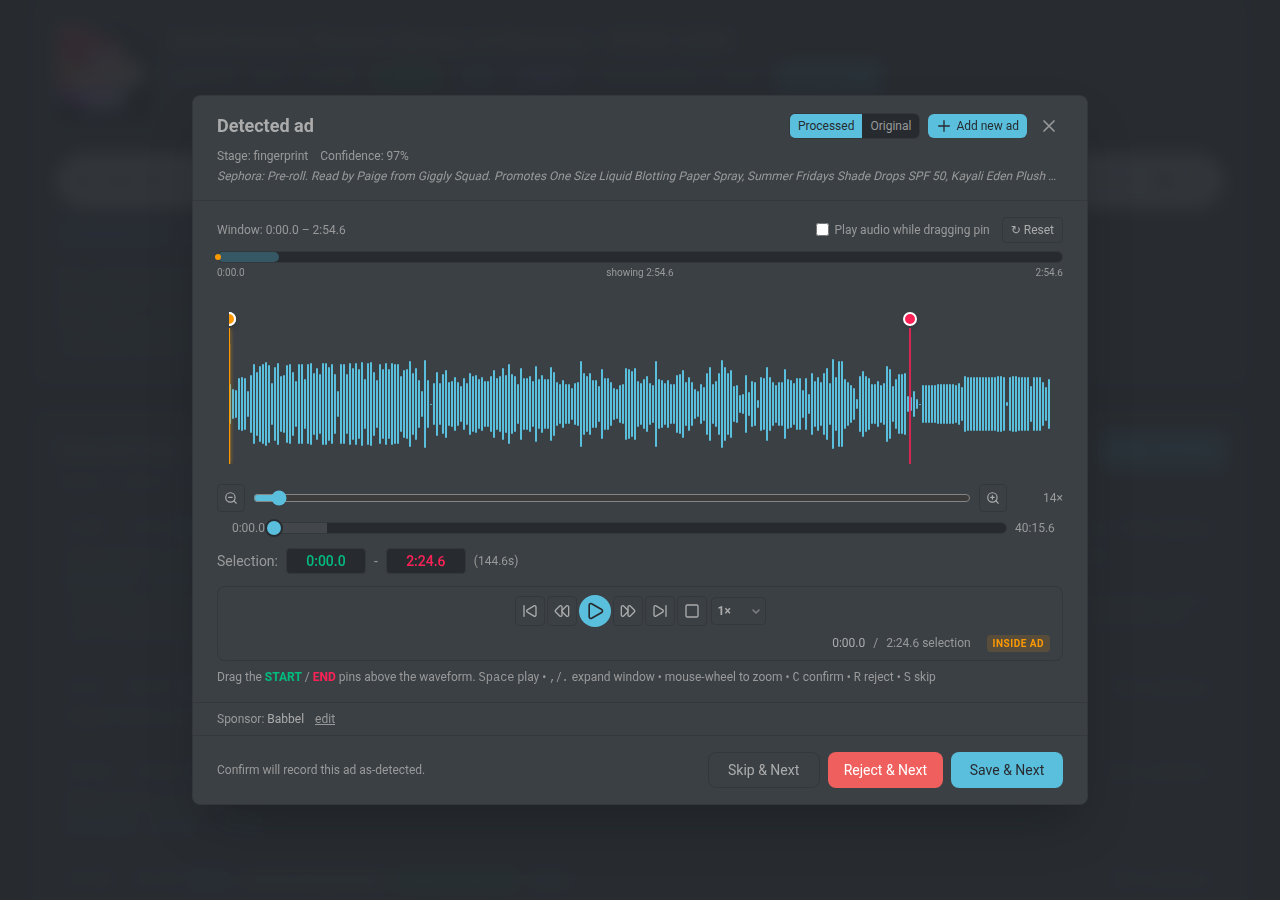
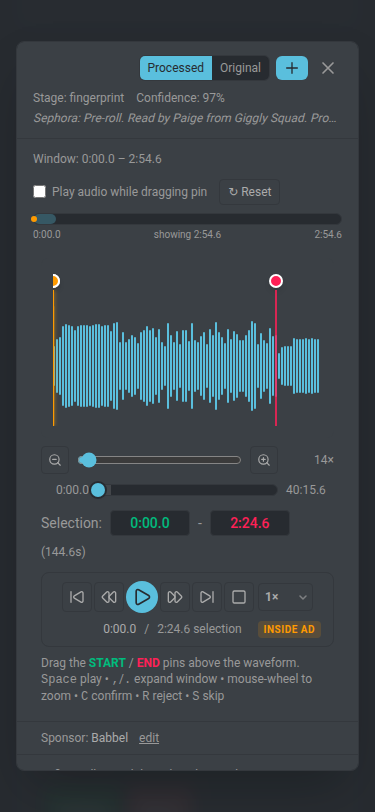
Section titled “Waveform Ad Editor”Review and adjust ad detections in the browser. The editor is a wavesurfer.js waveform: drag the green start and red end pins to set boundaries, with an orange playhead, 1x to 20x zoom (slider or mouse wheel), and a transport bar (skip back, rewind 10s, play, forward 10s, skip forward, stop). A playback speed dropdown (0.5x to 2x) sits next to the play button, and a full-episode scrubber under the zoom slider lets you jump anywhere in the audio regardless of how the waveform is zoomed. The scrubber shows a muted gray band for the slice currently visible in the waveform, a primary-color fill tracking playback, and a thumb at the current position. Click or drag to seek; Arrow keys nudge by 5s (Shift = 10s), Home/End jump to ends. Edit Ads opens centered on the detected ad with ~30s of context; Add new ad opens with the entire episode visible. Typing a time outside the current waveform window auto-expands the window to include the pin. The Selection text inputs clamp only to episode bounds; cross-field validation (Start before End, at least 1s) happens on Save with a red border and an inline error if invalid.
Each ad shows why it was flagged, the confidence percentage, and the detection stage. The selection readout shows the current bounds plus the originals if you’ve moved a pin. An INSIDE AD badge lights up when the playhead sits between the pins. Playback auto-seeks to ~2 seconds before the ad start when you open or switch ads, so you land in context instead of at the beginning of the episode.
A header row above the waveform lets you toggle Processed / Original (separate from the page-level toggle: this one applies to what plays in the editor) and jump straight into create mode with + Add new ad. Waveform colors follow the active theme; the dark theme uses the same muted/primary palette as the rest of the UI so the pins and playhead stay readable on both backgrounds.
Sponsor is a real autocomplete combobox seeded from the known-sponsor catalog plus any sponsors you’ve used recently on this podcast. Typing filters the list; clicking a row fills the field. You can also just type a new name and submit.
On mobile the layout stacks vertically and the keyboard hint footer goes away; everything is touch-driven from there.
On desktop you get Space for play/pause, arrow keys to nudge the focused pin, mouse wheel to zoom in or out anchored on the cursor, and C / R / S to confirm / reject / skip. Clicking the dimmed backdrop closes the editor in review mode; backdrop-close is disabled in create mode so you don’t lose an in-progress entry by clicking outside.
Adding a New Ad
Section titled “Adding a New Ad”If the detector missed one, click + Add new ad from the episode page header or from the same button inside the editor modal. The editor opens in create mode against the original (pre-cut) audio so you hear exactly what the listener would have heard.
The modal has two input modes, toggled by a tab strip at the top:
- By audio (default): enter start and end timestamps or drag the pins on the waveform. The text template auto-populates from the transcript span between your bounds.
- By text: the original transcript renders with word-level Whisper timestamps. Select a span of text in the browser; the resolved word boundaries populate the start/end timestamps and the template. A search box with
N of Mnavigation jumps between matches. The selected text stays highlighted on mobile too, so the selection is visible after the keyboard closes. Add another span freezes the current selection as a chip with its time range and a remove control, and clears the selection so you can mark a second run elsewhere in the transcript; spans that overlap or sit within a second of each other merge when frozen.
Switching tabs preserves your selection, so you can refine bounds in either view. Pick a sponsor from the autocomplete or type a new one. A Category select classifies the span (sponsor, cross-promo, self-promo, and the rest); the chosen category is stamped on both the manual marker and the pattern created from it, and each feed’s segment actions decide what happens to future matches. Left as Uncategorized, the pattern resolves as Sponsor. The optional Reason field is available in both modes, shared across every span in a multi-span submission.
With one span, saving creates a new pattern with created_by='user' and writes a 'create' correction so the pattern matcher picks it up on future episodes. With more than one selected span, each uses its selected transcript text instead of a shared editable template. The button reads “Mark ad (N spans)”: each span needs at least 50 characters of transcript, checked before submission, and submits as its own 'create' correction, one after another in time order. If one fails partway through, submission stops; the modal stays open and lists which spans saved and which failed, so you can retry just the rest. Saved spans stay recorded while you adjust unsaved selections. Sponsor, category, reason, and scope stay fixed after the first successful save. Selections and shared fields are disabled while saving. The Patterns page tags manually created patterns with a Manual badge and adds an Origin filter (All / Auto / Manual).
Ad Review tab
Section titled “Ad Review tab”The Patterns page has four tabs: Patterns, Detected Ads, Ad Review, and Cleanup. See Pattern Cleanup for reviewing suggested pattern edits. The Ad Review tab lists ad detections across all your podcasts so you can triage them without opening each episode.
Each row covers one detected segment: podcast name, episode title (linked to the episode page), publish date, start/end timestamps and duration, sponsor name, confidence score, detection stage, status, and resolution.
What the badges mean
Section titled “What the badges mean”A row carries up to three badges, and each answers a different question.
| Badge | Question it answers | Meaning |
|---|---|---|
| Accepted | What did the audio do? | The span was cut out of the published file |
| Not cut | What did the audio do? | The span is still in the file |
| Pending | What did the audio do? | The episode is still processing |
| Confirmed | What did you decide? | You said this is an ad |
| Not ad | What did you decide? | You said it is not |
| Kept | Why was it left in? | Its category resolves to keep, so it was never a candidate to cut |
| Adjusted | Did the reviewer move it? | The ad reviewer moved the boundaries; hover the badge for the span it started from |
A detection you have not decided on yet gets no second badge. Undecided is the normal state in this list, so a badge on every row would say nothing.
“Not cut” and “Not ad” read alike but are not the same. “Not cut” is what happened to the audio; a span can be left in because the validator rejected it, because you dismissed it, or because its category is set to keep. “Not ad” is your recorded judgment.
A Detection Statistics card above the filters shows totals by status and resolution across all podcasts. On phones the list renders as stacked cards instead of a table, with a sort control in the filter bar.
The tab opens with “Needs review” selected. That filter shows detections still waiting on a decision from you: held for review, or left uncut, with no correction recorded. Other options are Pending review, Rejected, Accepted, and All.
Segments left in by their category are not in “Needs review”. Their fate is already settled by the feed’s segment actions, and the corrections endpoint refuses a verdict on one, so listing them would offer a decision nobody can make. Change the category to move one, or find them under Rejected and All.
A podcast dropdown narrows the list to one feed. The Reviewer dropdown, on this tab and on Detected Ads, shows only rows whose span the ad reviewer moved, or only rows it left where they were. The search box filters by sponsor name or detection reason. The list shows 20 rows per page.
Each row has up to five actions:
- Play - auditions the pre-cut audio for that segment in the browser. Only appears when the original is retained (see Settings > Storage & Retention). Click again to pause.
- Confirm - records a confirm correction and marks the episode for a recut.
- Not ad - records a rejection.
- Category - sets the segment category, which is what decides whether the span is cut, beeped, or left in. This is the only action on a row left in by its category, and it is how you change that.
- Edit - opens the waveform editor so you can adjust the ad boundaries before deciding.
Confirm and Not ad only appear for a detection still awaiting a decision, and never on one left in by its category. Recording a decision does not re-cut the episode on the spot: it marks the episode, and an Apply recuts button above the list rebuilds every waiting episode once. An episode you edit five times is rebuilt once rather than five times. The same button appears on a feed page, where it covers only that feed’s episodes.
Corrections go through the same per-episode corrections endpoint used on the episode page, so approve and dismiss decisions feed pattern learning the same way.
Cleanup tab
Section titled “Cleanup tab”The Patterns page’s Cleanup tab lists suggestions from the Pattern Cleanup experiment (Settings > Experiments > Pattern Cleanup). A badge on the tab shows the pending count. Filter by kind (Trim, Split, Rename, Retire, Flag) and status (Pending, Approved, Rejected, Undone).
Each card shows the sponsor, scope, podcast, confidence, and reasons. Expand Original pattern text to check any suggestion against its source. Source context is also available when the original transcript was retained. Trims show removed text beside the retained copy; a combined trim and rename shows both changes. Split cards show the proposed pieces, while retirement and false-positive flags show the relevant statistics.
Approve or Reject a pending suggestion, or Undo an approved one. Load older suggestions reaches earlier decisions. Select all and bulk actions apply to the loaded pending rows. On mobile, a dropdown replaces the kind filter chips to keep the toolbar within the screen. See Pattern Cleanup for validation rules, undo conflicts, and force recheck behavior.
Audio Cue Templates
Section titled “Audio Cue Templates”If a show plays a recurring ding or stinger around its ad breaks, you can teach MinusPod that exact sound and have it snap cuts to the chime. Marking a cue, the find-audio-cues scan, the cross-episode scan, the window optimizer, cue types, and cue management are all covered in Audio Cue Detection. Each template row shows its last match date and, once it has matched before but produced no above-threshold matches in the feed’s last 5 episodes, an amber “quiet” badge, so a publisher swapping their stinger shows up before a cue-only feed silently stops cutting ads.
Held for Review
Section titled “Held for Review”A held detection from the queue to the waveform editor: play the span, confirm it, watch the recut, see it on the record.
Ads that cannot auto-cut are held rather than cut; see How It Works > Held for Review for the causes. The episode publishes with the audio intact, and the Episode Pending Review notification event fires when an episode finishes with held ads (Settings > Notifications). Held ads appear on the episode page in an amber “Held for Review” section with two actions per row:
- Approve & Recut - stores a confirm correction and immediately re-cuts the original audio if retained; otherwise the button reads Approve and the cut applies on the next reprocess.
- Dismiss - records a rejection and leaves the audio unchanged.
A 5-star rating dismisses every held ad on the episode without recording a rejection pattern.
When the original audio is retained, a pencil button next to the play button opens the ad in the waveform editor, where you can drag the boundaries before confirming. Confirming with moved boundaries cuts only the span inside the pins. If the hold came from the ad reviewer proposing a boundary past the detected span, confirming at that position is accepted too, not just a narrower one.
When the ad reviewer proposed a narrower span, the row offers a trimmed confirm that approves only that span. If the hold is a remainder carved out of a larger detection, the proposal is dropped or clamped to the remainder, and the trimmed button is hidden when the proposal does not overlap the held span. Changing the category in the editor records the new category and keeps the ad held; it does not confirm it.
The episode list shows an amber “N held” chip for any episode with pending held ads. See Held for Review for what triggers a hold.
A gap the upstream transcript differential found but no other stage backed carries an “Upstream transcript omits this span” chip; an ad another stage found that the differential corroborates instead shows a “Corroborated: transcript” badge. When the stage ran on an episode, its header shows a “Transcript diff: N gaps” pill (or “no gaps”, “unreliable”, “empty”, or “failed”), hovering it for the match percentage. See Transcript Differential.
Partial Detection
Section titled “Partial Detection”When the AI detection pass fails but pattern and cross-fetch evidence already produced cuts, the episode still publishes: an amber “Partial detection” badge appears in the episode header (hover for the failure reason), and a warning banner below explains that some ads may remain, with a Re-run detection button that reprocesses using the LLM. See How It Works > Partial Detection for when this happens and the automatic follow-up re-detect.
Processing stats
Section titled “Processing stats”Every processing run records what it actually worked with, and the episode page shows it in a “Processing stats” section at the bottom, collapsed by default. Each row shows when the run started, downloaded length, LLM detection window count, and hits per stage. It also reports the final cut / held / kept split, ad time removed, second-scan result, and token cost. Recuts omit detection details but retain timing for the work they perform.
Completed runs show a chapter warning when generation used a fallback, with the recorded reason available in the run details. If manual chapter regeneration fails, existing chapters stay in place and the episode reports the regeneration error.
Durations use clock formatting (M:SS or H:MM:SS). Run time is elapsed wall-clock time through saving the episode and feed. Audio length is the length of the downloaded copy. Chapters runs inside Assets, so it sits under that row. FFmpeg time is spent inside the other stages, so it is listed apart and sums every FFmpeg task in the run, including retries. The remaining rows do not overlap, but time between stages counts toward the run time and appears in no row. Transcription, detection, or verification configured not to run says Skipped. A missing time in another measured run says Unavailable; a run saved before timing was recorded says Timing unavailable.
Two things make this table earn its place. First, feeds with dynamic ad insertion serve a different copy per download: the Audio length column shows it directly, and a note calls out when the copy differs from the duration the feed declares. Second, when a run removes far less ad time than the feed’s recent average, the episode header shows an amber “Low ad yield” badge with the numbers, so a lightly-filled download does not read as a detection failure.
Completed episodes also state the verification result under the header: whether the second scan of the output audio found anything left to cut.
Expanding a run shows its per-phase cost breakdown: one row per pipeline phase with the provider it routed to, the model that answered, input and output tokens, and cost. Cache and reasoning token columns appear only when a run has them. A phase that retried onto a different model contributes more than one row, which is how a fallback becomes visible rather than being averaged away. Detection and verification are listed even when they did not run, labelled Skipped, Not applicable, or Unavailable, so a missing row is never ambiguous. A run recorded before the cost ledger existed, or a recut, shows “Breakdown unavailable” and keeps only its recorded total.
The episode header carries up to three spend readouts: Active run while a run is in flight, updated from the ledger as it spends; Latest run for the most recent attempt, a failed one included; and Total spend, the episode’s recorded ledger spend, which reads “Recorded so far” while processing. Historical calls made before the ledger existed are not included in that cumulative figure. When some calls in a figure have no resolved price, the readout says “known spend” and an amber Incomplete chip marks it, because the amount is a floor rather than the real total. Setting a price for the model in question (Settings > AI & Processing > AI Models) lets subsequent calls resolve their cost; it does not reprice already-finalized calls or clear their Incomplete status. On the Stats page the Incomplete chip on an episode’s cumulative spend is itself a button. It lists the calls behind the figure, one row per recorded attempt with its phase, provider and account slot, model, outcome, tokens, cost or “Unknown”, and timestamp. An unpriced call can then be named instead of leaving a gap in a total.
Search index
Section titled “Search index”Search reads a full-text index. Changes to shows, episodes, transcripts, patterns and sponsors are written to a change journal and applied to the index every 6 hours, so new content can take up to 6 hours to appear in search results. The index is rebuilt in full once a week. Both run in short steps that let other writers in, and a refresh is postponed (up to 12 hours) while an episode is processing. Descriptions are indexed as plain text, so result snippets show no HTML tags.
Filters and date ranges
Section titled “Filters and date ranges”System One calls and Pattern Cleanup activity have separate Stats cards and jump links. Both use the LLM spend filters: date range, podcast, provider, and model. The summary cards and charts have a separate podcast filter.
Filter labels sit above controls in aligned columns on Stats, History, Sponsors, and Patterns. From and To stay on the same row on narrow screens. Clearing either date removes only that bound; both dates select whole UTC days, including the endpoints. An invalid range is flagged when From is later than To.
LLM cost ledger
Section titled “LLM cost ledger”The Stats page has an LLM cost ledger card holding two paginated tables over the same underlying record of every LLM call, including calls made by runs that later failed or were cancelled.
One filter bar drives both tables, plus the summary line above them:
- From and To dates. These select whole UTC days, inclusive at both ends, so picking the same date twice gives you that entire UTC day. They are UTC days, not local ones, and not a timestamp range.
- Podcast, narrowing to one show.
- Provider and Model. Their options come from the ledger itself, scoped by the date and podcast filters already set. The list is complete rather than paginated, so a model that only appears on the fifth page of results is still selectable. Choosing a provider clears the model selection, since the model list belongs to the provider.
Above the tables, a line states what the figures cover: “Lifetime spend (all recorded runs)” with no date filter set, or an interval description naming the bounds when one is. Changing any filter returns both tables to page one.
Those filters, both tables’ sort columns and directions, and both page numbers live in the page’s URL. Reloading restores the view, and the address bar is a shareable link to a specific cost question. Nothing secret is written there: only filter values, sort keys and page numbers, and a value left at its default is omitted rather than spelled out.
A row of section links sits under the Stats heading and jumps straight to Overview, Charts, Reviewer, Addressing, Audio cues, Spend, System One, Cleanup or Podcasts, so the ledger is one tap away on a phone instead of a long scroll. Links are listed only for sections on the page.
Provider and model usage lists one row per provider and model combination, so a model id served by two providers stays two rows. Each row carries call count, distinct episodes, input and output tokens, cost, and a Coverage column. Coverage reads “Fully priced” when every call in the row had a resolvable price, and “3 of 12 unpriced” when some did not, which is the same condition the episode page marks as Incomplete. The Cache hit column is the share of input tokens served from the prompt cache (cache reads over input tokens), shown as “-” for a model with no cache traffic. Hovering it shows the cache read, cache write and input token counts. Expanding a row shows its detail, including cache read, cache write and the hit rate. Every column is sortable, server-side, so sorting spans the whole result rather than the current page. The contributing calls list and the per-run phase breakdown carry the same Cache hit column.
Episode costs lists one row per episode with its podcast, the models used, how many runs it took, the latest run’s cost, its cumulative cost, and when it last spent anything. The two cost figures answer different questions and diverge once an episode has been reprocessed: the latest-run figure always describes that episode’s actual latest run and is not narrowed by the provider or model filter, while the cumulative figure sums only the runs matching every filter. Each row links to its episode.
Screenshots
Section titled “Screenshots”Dashboard
Section titled “Dashboard”| Desktop | Mobile |
|---|---|
 |
 |
Themes
Section titled “Themes”Every theme and mode on the dashboard. Pick one under Settings, Appearance.
Feed Detail
Section titled “Feed Detail”| Desktop | Mobile |
|---|---|
 |
 |
Episode Detail
Section titled “Episode Detail”| Desktop | Mobile |
|---|---|
 |
 |
Detected Ads
Section titled “Detected Ads”| Desktop | Mobile |
|---|---|
 |
 |
Ad Editor
Section titled “Ad Editor”| Desktop | Mobile |
|---|---|
 |
 |
Ad Patterns
Section titled “Ad Patterns”| Desktop | Mobile |
|---|---|
 |
 |
Sponsors
Section titled “Sponsors”| Desktop | Mobile |
|---|---|
 |
 |
History
Section titled “History”| Desktop | Mobile |
|---|---|
 |
 |
| Desktop | Mobile |
|---|---|
 |
 |
| Desktop | Mobile |
|---|---|
 |
 |
Settings
Section titled “Settings”| Desktop | Mobile |
|---|---|
 |
 |